Skip to content
Hacienda
San Miguel
Mexican kitchen · Beloit, Wisconsin

A little Mexico.
A lot of flavor.

Tacos, sizzling fajitas and dishes made to share. Bring your appetite to Hacienda San Miguel.

1817 Prairie Ave, Beloit

Sizzling Fajitas from Hacienda San Miguel
From our kitchenSizzling FajitasChoose your options ↗
Pickup at Hacienda San MiguelTue–Thu & Sun 11–8 · Fri–Sat 11–10 · Mon closed608-299-8034 ↗
Find your next favorite

What sounds good?

Explore the menu →
A taste of Hacienda

From our menu.

Choose your dish. Make it yours.

Hacienda, within reach

Keep Hacienda close.

Add the pickup menu to your home screen.

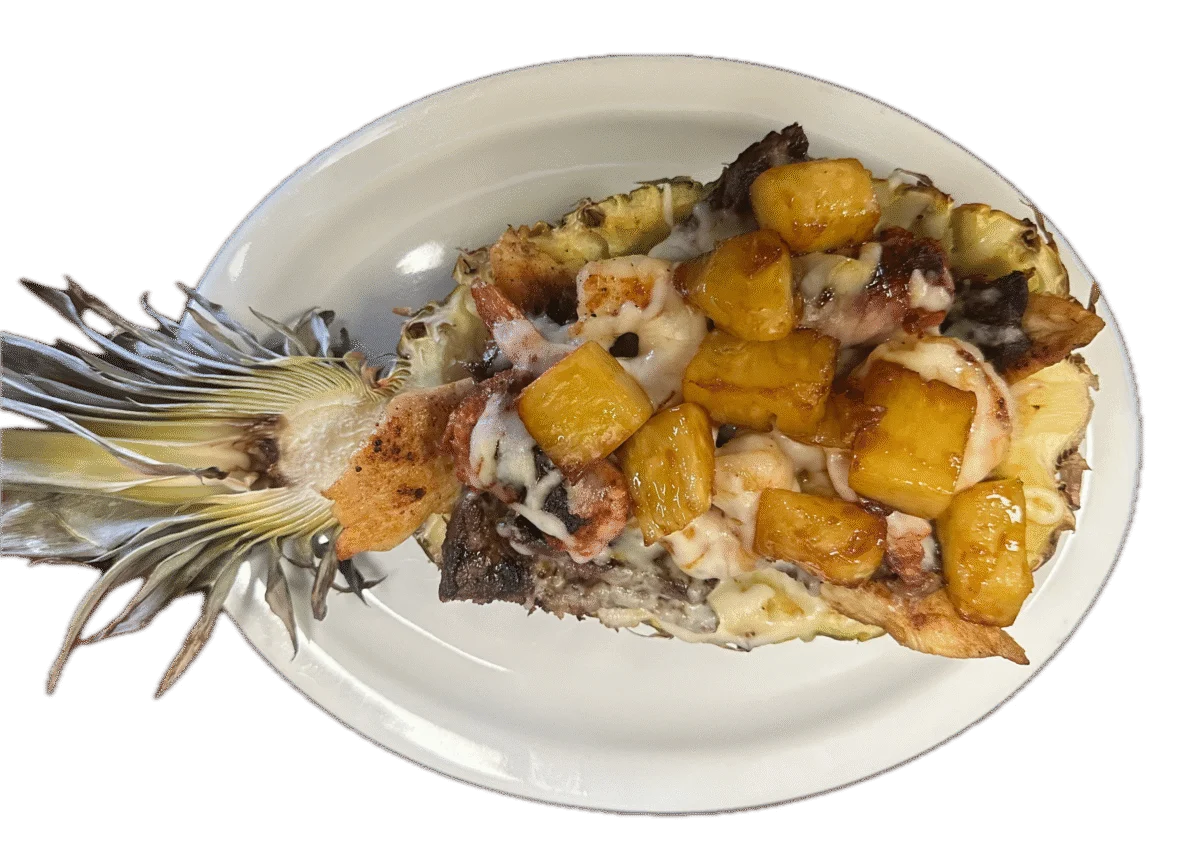
Piña Loca prepared at Hacienda San Miguel
Welcome to Hacienda

Mexican roots.
Beloit at heart.

Since 2024, Hacienda San Miguel has brought Mexican flavors and a warm welcome to Beloit. Join us for a quick lunch, a family dinner or a meal to take home.

Our story →
More ways to order

Your table. Your choice.

Prefer another service? Each partner has its own menu, cart and checkout.

Make it yours
Product has been added
item in cart

No products in the cart.

Explore Food Items

No products in the cart.

Install Hacienda
Hacienda San Miguel · Beloit

Your table, one tap away.

Add Hacienda to your home screen for quick access to the pickup menu. No app store needed.

Connect to the internet to see current prices, use your cart and complete checkout.

Android · Chrome

  1. Open this website in Chrome.
  2. Tap Install on this device below if available, or open Chrome’s ⋮ menu.
  3. Choose Install app or Add to Home screen, then confirm.

iPhone / iPad · Safari

  1. Open this website in Safari.
  2. Tap Share. If needed, open the page menu first, then Share.
  3. Choose Add to Home Screen. Scroll down the share menu if needed.
  4. Turn on Open as Web App if shown, then tap Add.

Computer · Chrome / Edge

  1. Open this website in Chrome or Microsoft Edge.
  2. Click the Install icon in the address bar, if available, or find the install option in the browser menu.
  3. Review the browser’s prompt and confirm installation.

Can’t see an install option? Try the main browser instead of a social app’s built-in browser, or keep using the website. Browser options may vary.

Agrega Hacienda a tu pantalla de inicio para acceder al menú de pickup. No necesitas una tienda de aplicaciones.

Necesitas conexión para consultar precios actuales, usar el carrito y completar tu pedido.

Android · Chrome

  1. Abre este sitio en Chrome.
  2. Toca Instalar en este dispositivo si aparece abajo, o abre el menú ⋮ de Chrome.
  3. Elige Instalar aplicación o Agregar a la pantalla principal y confirma.

iPhone / iPad · Safari

  1. Abre este sitio en Safari.
  2. Toca Compartir. Si hace falta, abre primero el menú de la página y luego Compartir.
  3. Elige Agregar a inicio. Desliza hacia abajo en el menú si no aparece.
  4. Activa Abrir como app web si aparece y toca Agregar.

Computadora · Chrome / Edge

  1. Abre este sitio en Chrome o Microsoft Edge.
  2. Haz clic en el icono Instalar de la barra de direcciones, si aparece, o busca la opción de instalación en el menú del navegador.
  3. Revisa el aviso del navegador y confirma la instalación.

¿No aparece la opción? Abre el sitio en el navegador principal, fuera de redes sociales, o sigue usando la web. Las opciones dependen del navegador.

Browse the menu / Ver menú
Website by Smart Tech Solutions